Creating a website
has never been so simple

Navigate through the instructions:

  • Getting started with the Online Editor
  • Templates
  • Managing pages
  • Adding texts
  • Working with images
  • The Menu
  • The Contact form
  • Mobile version


  • Getting started.

    The Contact page or form
    Did you know that the contact page is among the top three most important pages of any website?

    Being easily reachable is highly important when trying to connect with your particular audience and having an online contact form, makes it far easy for your visitors to contact.

    Add a contact form
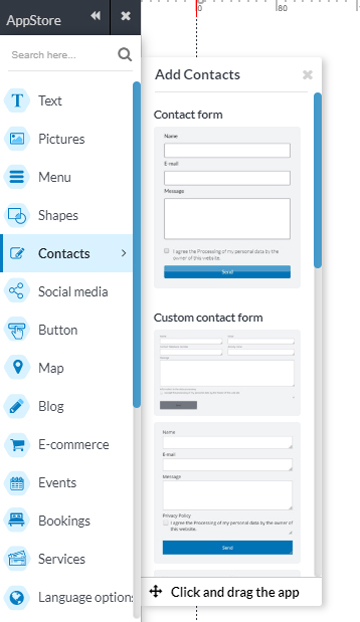
    As with the other Apps, you can get a Contact Form using the drag and drop from the App Store, under Contacts.

    Select the App Contact Form with the fields Name, email and Message, or the Custom Contact Form and then customise with the required fields, and to add your e-mail for receipt of the requests.

    Configure the form
    You may configure the App
    • to change the color of the button.
    • to change font/colour of the text
    • to select auto answer, and write the response text to the users that have sent a request. [Confirm by checking the auto-Response.]


    Custom contact form
    To create a form that is customisable with fillable fields, drag and drop from Appstore and start editing the fields and/or add new ones.
    Use the plus icon to select and drag an element within the form: a text field, a checkbox, a date field, a selector field, an upload field file and an email field.
    You have options like making a field mandatory, by adding a check mark to the field and may from the lower right edge, you can resize the field.