Adding and managing the menu
The menu or navigation bar is one of the fundamental elements of your website, allowing visitors to reach all the pages on the site. It is generally inserted in the Header of the website (the Header) or vertically on the left, and is present in all the pages of the site, making it easy to move throughout the website.
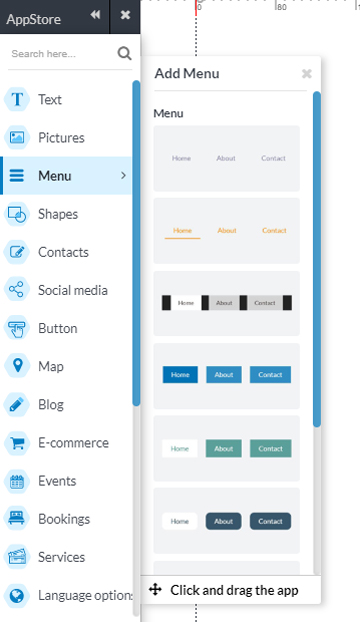
Click on the category Menu of the AppStore and select one of the styles of the menu pre-configured: each one has color and animation that you can edit later from the edit bar and customise to your liking.
Drag the App Menu within your area of work to begin to create the pages and menu items corresponding.
To add a menu item, double-click on the App Menu, and on the green icon to the right. Type the name of the menu item and press enter to confirm.
Customise a menu
Various forms of customisations are possible and click on the App menu, on the edit bar to start.
- Click on the icon color to change the color of Text, Button and background.
- If you opted for buttons, you may customise the background by setting a transparency percentage.
- To change Font, choose the text font and size.
- Several animations are available from the icon on Hover, by the mouse.
- Use the icon Size, to determine the size of the Button Area as well as the distance between the Buttons.
From the icon Wheel you can also
- Round the edges of the button,
- Choose whether to keep the orientation horizontal or if you go to the menu in vertical
- Choose the centering of the text.
Delete menu items
Double-click on the App menu to delete a single item on the menu. Hover with the mouse on the menu item that you want to delete, and click the X icon in the top right. You will be asked to confirm the deletion.
Add a submenu
You can add a sub-item to the menu by double-clicking on the App menu. Hover with the mouse on the menu item you want to add a subheading and click on the plus icon in green under the menu item. Type the name of the item and press enter to confirm.
Changing the menu links
The main function of menu is to make it easy for the visitors to navigate within the web site, hence the importance of the menu.
The setting up of the links on the menu is the same as the text, buttons, and images.
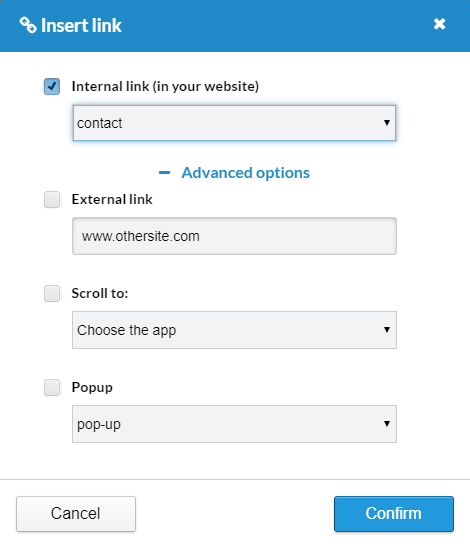
Click on the icon chain present on the edit bar to access the panel for linking the menu to corresponding pages.
Links can be to an existing page of the website, or you may also opt within the advanced options to an external link, or to another web site.
Double click the menu app in the header part, hover on the menu part you want to update (example Contact) and then click on the small pencil button.
On the right of item, a link icon will appear, just click it to get the insert link popup. Select and choose accordingly before clicking on the Confirm button.
Repeat for each menu.
Note: you may also add and/or update the menu titles.