Customise image
Click on the App to open the edit toolbar, then click on the bar.
From the icon wheel, you can enter the effect of Parallax.
To add a description to the Image, click on the icon Tags (this will help improve your rankings in search engines).
Remember to always click the confirm button.
Add a frame
Click on the App to open the edit toolbar, then on the edit bar, and icon Frames.
You can select between one of the forms of the images available, add a frame, change the color and add a shadow.
Add a link
To link an image, click on the image to get the edit toolbar.
An image can be linked to an existing page of your site, an external link or an App/section in the same page.
Slideshow
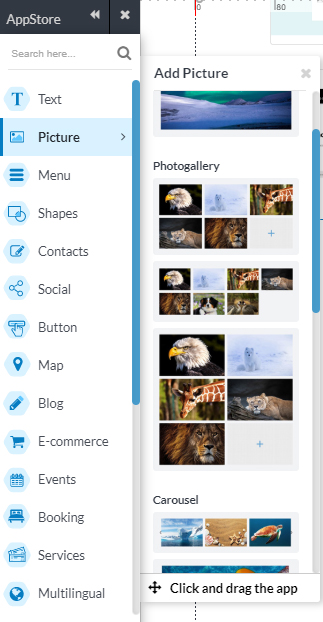
Click on the Appstore on Picture to select SlideShow, then open the edit toolbar to Add Photos directly from the folders on your computer.
The image will be resized and cropped according to the size that you assigned to the App. Click out to save the inserted image.
You may add a new image or multiple images at once by clicking on Add photos. Crop images inside the App's Slideshow, and click outside to save.
Delete a picture
To delete an image from the Slideshow, double click on the App., the hover the mouse over the image to Delete , and click the X icon at the top right corner.
Add a photogallery
To include a photo Gallery select the App photo Gallery from our Appstore and customise accordingly, by clicking on the edit bar, to select the images directly from the folder on your computer.
With the photogallery App, you can enable the toolbar Social sharing of the photo Gallery, the title, change the orientation of the Images, and set a effect. You may also, by clicking on the Star icon to change the arrow icon, choose the color, the Size and Position of the Arrows.
Be ready to explore all the available options in the Appstore. We keep updating and adding features.