Creating a website
has never been so simple

Navigate through the instructions:

  • Getting started with the Online Editor
  • Templates
  • Managing pages
  • Adding texts
  • Working with images
  • The Menu
  • The Contact form
  • Mobile version


  • Getting started.

    Working with templates
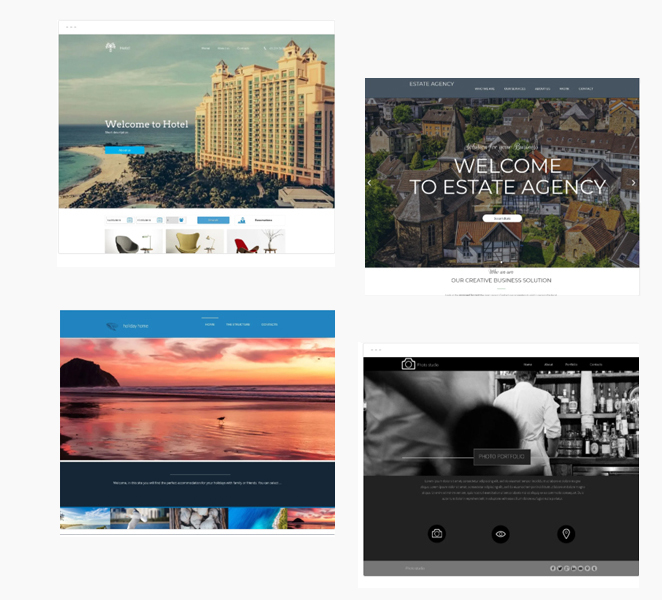
    Choose from hundreds of high quality models and find the one that best represents your business.
    For example: select Restaurant if you are a restaurateur, cafe Roma if you have a bar, Fashion if you're into fashion and clothing, Portfolio if your goal is to present work or projects related to your profession...

    Once a template is selected, start customizing with the Apps from the editor tool, accessible when you login.

    Should you not be satisfied with template you have chosen, no worries.
    You may start again with a new template, by changing it in to the site management present at your right hand, icon wheel.

    Copy and Paste
    The function copy-and-paste allows you to paste an App or section on a page of the site in other pages, with the same properties that the component has in the source page, such as size, position, and content.
    Just select the component of your interest, then with the right mouse button, click on Copy component.
    Go to the other page where you want to paste the component, click the right button.

    You shall have two options:
    • Paste the component: In this case, any changes to the component are replicated on other pages in which the component is pasted.
    • Paste and duplicate the component: With this, the component is pasted on other page and any change in the component will have no effect on the original component.
    Resize
    Any component of App may be resized to what you want, allowing you to modify the template for a true unique website.
    To resize, any component or App, click on it and pull with the mouse on one of its sides to change the width and/or the height.
    To maintain the proportional ratio between the length and the width, resize the App from one of the sides or corners while holding the "Shift" button.

    Delete a component
    Delete contents is very simple: click to select the section/App you want to delete, and use the "Delete" button on your keyboard.

    Adapt a component
    Create a website that makes it perfect for all monitors with Full Width functionality:
    Click on the app that you want to adapt to the screen width, the edit bar, and the settings icon, then click the Full Width check. The App will automatically resize to the size of the monitor you are using.